Login
About the project
Productivity app
A self-hosted Flask app for planning the week: projects with a Markdown plan, a drag-and-drop
timeline, three project slots a day and a stopwatch for tracked time. One SQLite file, one
container, no external services.
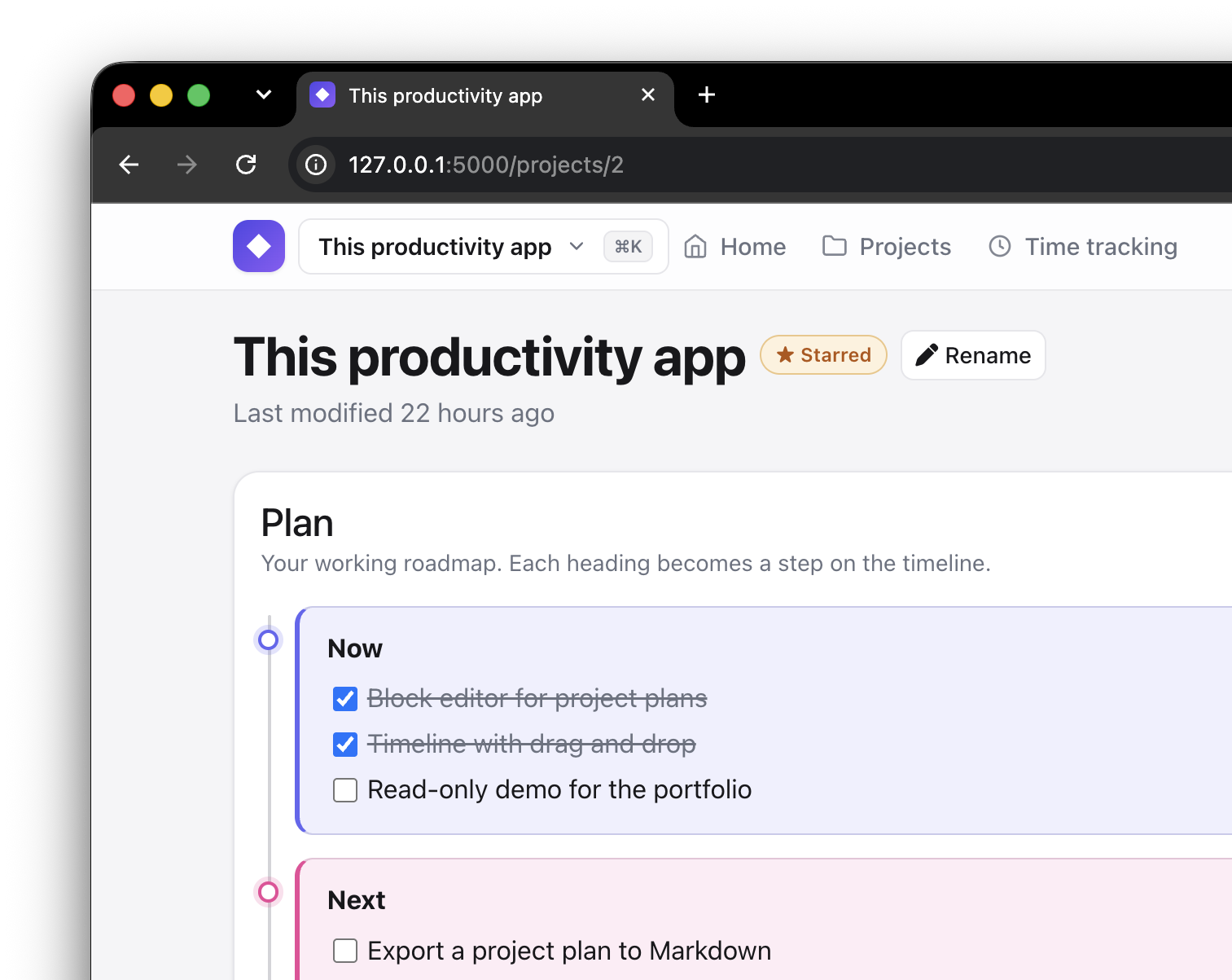
What it does
- Projects — each one has a short goal and a long plan written in Markdown.
Headings become steps, checkboxes stay checkable in the rendered view, and a finished
section can be archived out of the plan without leaving the page. Beside the plan sits
Statistics, which holds nothing until it is asked: press Show and it works out, from the
last three weeks, how many sessions a week the project came round and how long a session ran.
Nothing is stored — the figures are counted from the bookings and the clock when you ask for
them, so they cannot go stale. Archiving the whole project
takes it out of the planning — off the home page, out of the block picker on the schedule, out of
⌘K — while the sessions already booked for it stay in the schedule and still count; the project
page says so, and one still due today keeps its place in ⌘K. A project marked private
carries no padlock anywhere — that would point it out. Switch on safe mode (the shield next
to the theme switch) and such a project opens with its plan and its thoughts behind a button
each; a reveal is remembered for five minutes, and reaching for the shield again drops it. - Tags — write
#anythingin a list item of a plan and it becomes a tag. Nothing is stored
as a tag: the tag page, linked from the home page, reads the plans as it opens — spinner and
all — and groups what it finds; every entry leads back to the line it came from. Tags are
picked out in the plan itself too. - Timeline — projects and free-form notes arranged in columns you drag between; a backlog
column holds whatever is off the timeline. - Day slots — every day has slots A, B and an optional C, one project each. The home page
shows what is in them, the first heading of each plan and today's tracked time.
Below that sits a health ring, 0 to 100: how many of the booked sessions in the week before today
were ticked off. Only finished work moves it. Under it, Show draws how the score moved over
the last two weeks, one point a day, worked out only when asked for. - Schedule — a month of day sheets, each showing its A/B/C blocks in the same colours as
the home page: dashed grey while free, amber once booked, green when the session is done. The
sheets are a live board with no edit mode to switch on: click a free block to fill it, drag a
project between blocks — dropping one on a taken block swaps the two — or free a block with its ×.
A session that keeps getting put off says so: moving one onto a later day reddens its block —
once for the first move, the rest of the way for the second — and marks it with a ! that
says, on hover, how many times it has happened. Pulling it back to an earlier day takes a move
off again, one for one: a session put off four times takes four moves back before it is clear,
even though it stopped getting redder after two. The count belongs to the booking, so freeing
the block and booking the project again starts it clean, and a finished session is green
whatever it took to get there.
Under the blocks, behind the same dashed line the date sits behind, is that day's note list:
a + adds a line, a click on one rewrites it where it stands, a × takes it away, and a day takes
as many as get written. Above them sit that day's events from any calendar you have
subscribed to — see Calendars below.
"Day off", next to the archive link, asks for a date and frees it: that day and everything
planned on it and after it — notes included — move one day later, bar a session already ticked
off, which stays on the day it happened; the page shows as many weeks as it takes to keep the
last booking in view.
Archive shows the same sheets for days already gone, three weeks a page, back to the first
booking; it is a record, so nothing there can be booked, moved or freed — but its ✓ still works,
so a session finished on Tuesday can be ticked off on Thursday and counts towards the health
ring like any other. The note list is live there too: a day is usually only described once it
has been. - Tasks — things to do, each on a day or on none. The Tasks tab lists all of them by
date: whatever is overdue, today, tomorrow, every later day with something on it, the ones
with no date, and the finished ones folded away under Completed. The same tasks show up on
the schedule, on the sheet of their own day between the blocks and the notes, and in a box
on the home page under today's calendar — today's tasks, with anything left undone on a day
already gone above them. They are edited the same way everywhere, in place: the circle ticks
one off, clicking the text rewrites it, "+ Task" adds one to that day, and the ⋯ (or a right
click, or a long press on a phone) moves it to today, tomorrow, the day after, the weekend,
next week or any day you pick, takes its date away, sets it repeating, or deletes it. "Day
off" moves the open tasks along with the bookings; a finished one stays on the day it was done.
A task can repeat every day, every weekday, every week, every two weeks, every month or
every year. Only the next occurrence exists: ticking it off keeps it as done and writes the
one after it on its date, so the schedule is never filled with copies; taking the tick back
takes that new one away again. A ↻ beside the text marks a repeating task. - Inbox — somewhere to put a thought before deciding which project it belongs to. Long-press
the installed app's icon on Android and the menu offers Add to inbox, which opens straight
onto a box: type it, or dictate it with the mic on the keyboard, and it is saved without today's
plan ever coming up to argue with it. There is a + beside "Today" for the same thing at a desk.
What is waiting shows up in a list on the home page, each line with a project picker; choosing
one appends the text to that project's thoughts, a blank line below whatever was already there,
and takes the line off the list. A × throws one away instead — something captured by accident
should not have to be filed somewhere real to be got rid of. An empty inbox shows nothing at
all. - Calendars — paste a calendar's address in iCal format on the Integrations page (under
your name in the top right) and its events show up under the blocks of every day sheet, in the
past as well as ahead. The public and the private ("secret") address both work; nothing is ever
written back, so the private one just shows more. It is the whole integration: no OAuth, no
client, no token to expire — a URL that is re-read at an interval you set there (half an hour
by default), never while a page is loading: the schedule renders from the last copy and fetches
the new one once it is up, with a spinner in the corner while it does. The copy is cached, so a
calendar that goes down leaves the sheets as they were, and one button takes a calendar off them
without forgetting its address. Recurring events, all-day events, exceptions and moved
occurrences are understood; the events themselves are read-only here, because the calendar owns
them. - Time tracking — start/stop a timer per project, with daily and weekly totals. Deleting a
project keeps its entries: they hold a snapshot of the title, so past weeks stay correct. - JSON API —
/api/v1exposes today's slots and start/stop for the timer, authenticated by a
bearer token you generate on the account page. It is what the macOS menu bar client talks to;
the token is separate from your password, so changing one leaves the other working. - Installable (PWA) and mobile-first, because most of the ticking off happens on a phone.
Stack
Flask 3 · SQLAlchemy + Alembic · Flask-Login · SQLite · Jinja templates with vanilla JS ·
Gunicorn in Docker behind nginx.
Run it locally
python -m venv .venv && source .venv/bin/activate   # .venv\Scripts\activate on Windows
pip install -r requirements.txt
cp app/instance/.env.example app/instance/.env      # every setting is documented in there
python run.py
The app starts at http://127.0.0.1:5001 and creates the SQLite database and its tables on
first run. Register an account, or set DEFAULT_LOGIN_EMAIL / DEFAULT_LOGIN_PASSWORD to
pre-fill the login form.
Port 5001 rather than Flask's usual 5000: on macOS the AirPlay Receiver in Control Center
listens on*:5000and answers every request with a 403.
Deployment
An instance is a directory with a docker-compose.yml and an app/instance/.env; the same
compose file serves the private instance and the public demo, which differ only in that file.
Nothing is published on the host — the container has a pinned name and a reverse proxy reaches
it by that name on port 8000, so several instances can share one server. On first boot the
entrypoint generates a SECRET_KEY, runs the migrations and, in demo mode, seeds sample
content; all three are idempotent, so redeploys leave the data alone. There is more info about demo in demo/example.
Docs
- docs/ARCHITECTURE.md — structure, data model, request flow and the
non-obvious parts. - docs/CHANGE-CHECKLIST.md — the repo's conventions and a
definition of done per change type.